Genova
Manage Risk Forms
Building Risk Forms: A Step-by-Step Guide
This guide provides a comprehensive walkthrough of the process for creating and managing risk forms within the system. Each step includes a screenshot to help you navigate the process effectively. Follow these instructions carefully to ensure accurate form creation.
Start url: http://localhost/vanguard-genova/cia/admin/products-list
Tab Name: List Products - GENOVA INSURANCE
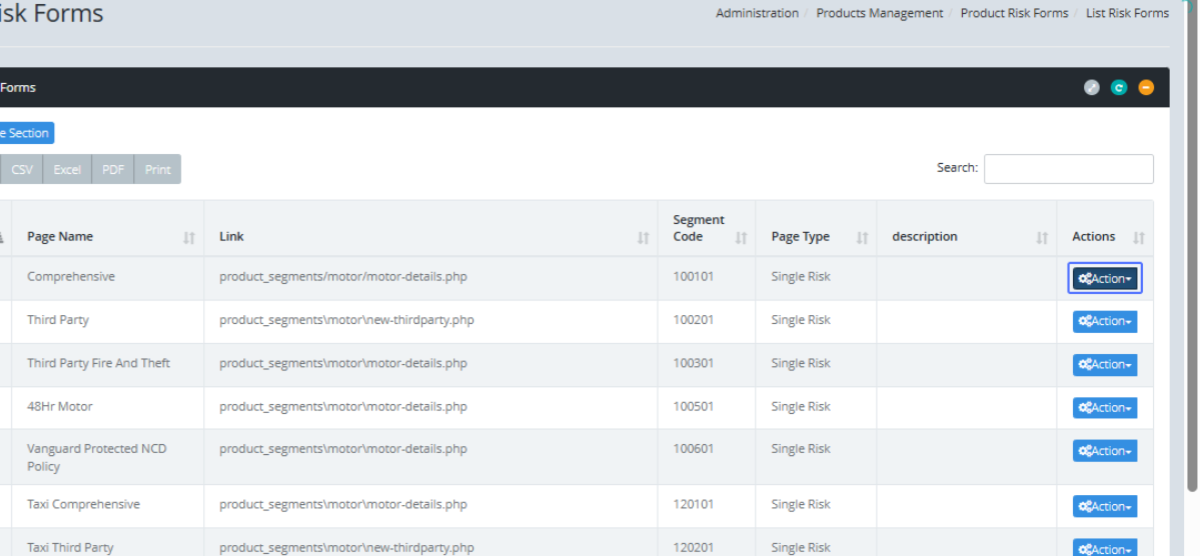
Accessing the Risk Form List: Click the List Risk Forms to see the existing Risk Forms in the system.

Tab Name: List Risk Forms - GENOVA INSURANCE
Initiating the Form Building Process : These risk forms can be edited by clicking the action button to see the actions that can be performed in the form
Navigating to the Segment Creation Page: To Build a Risk Form segment, Click on the Build Segment Button.

Tab Name: Build Segment - GENOVA INSURANCE
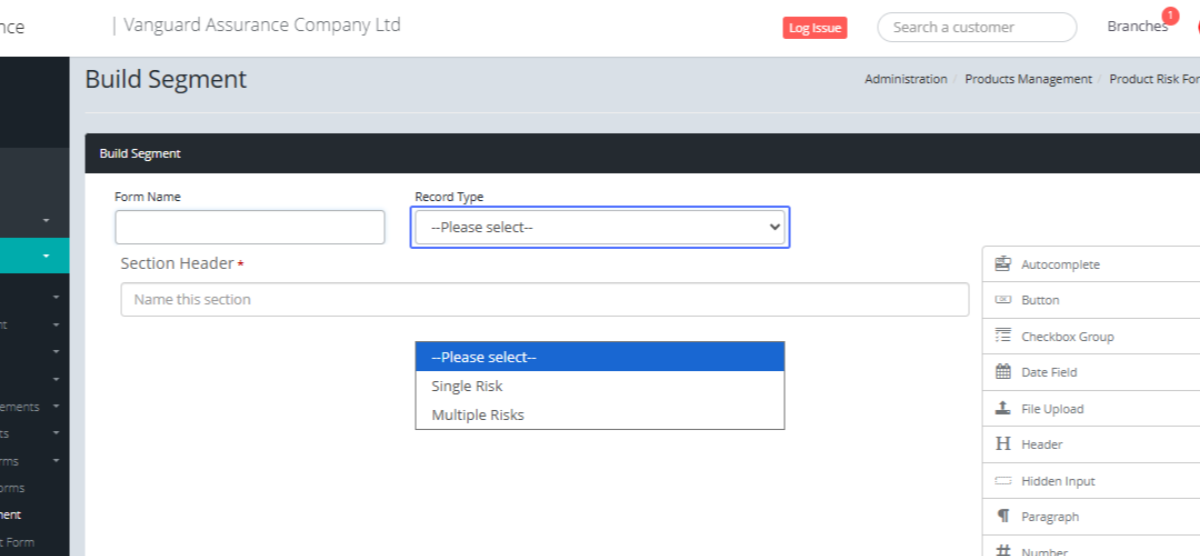
Entering the Form Name: Users can build a segment by entering the form name of the segment.

Selecting the Record Type: Users can select the form type as well
Defining the Section Header: Users can select the Section header
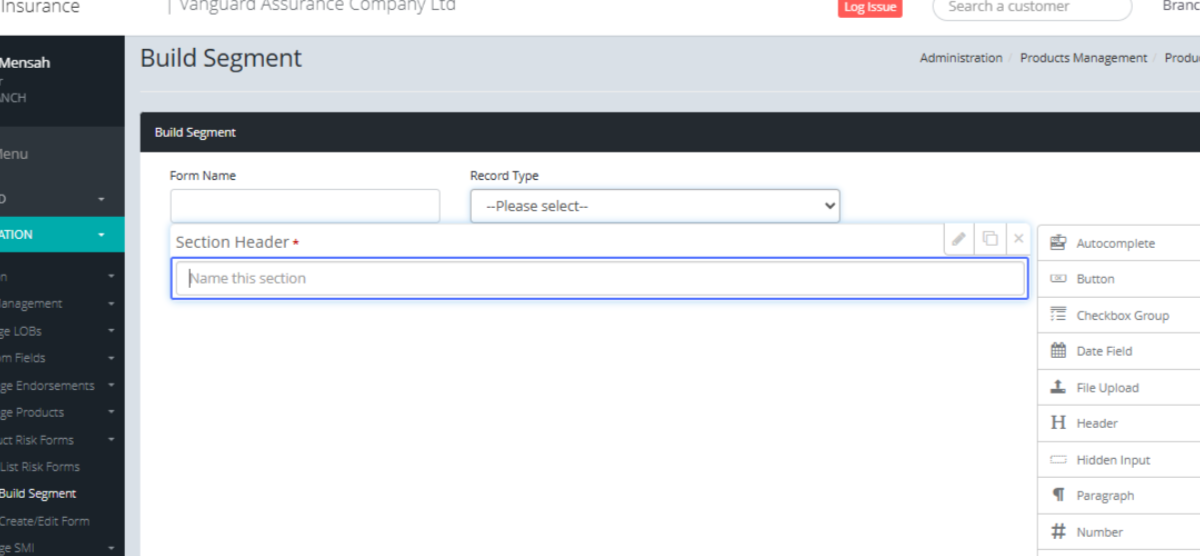
Adding Form Elements: We have provided the users options to create their preferred segment by giving them an array of design options.
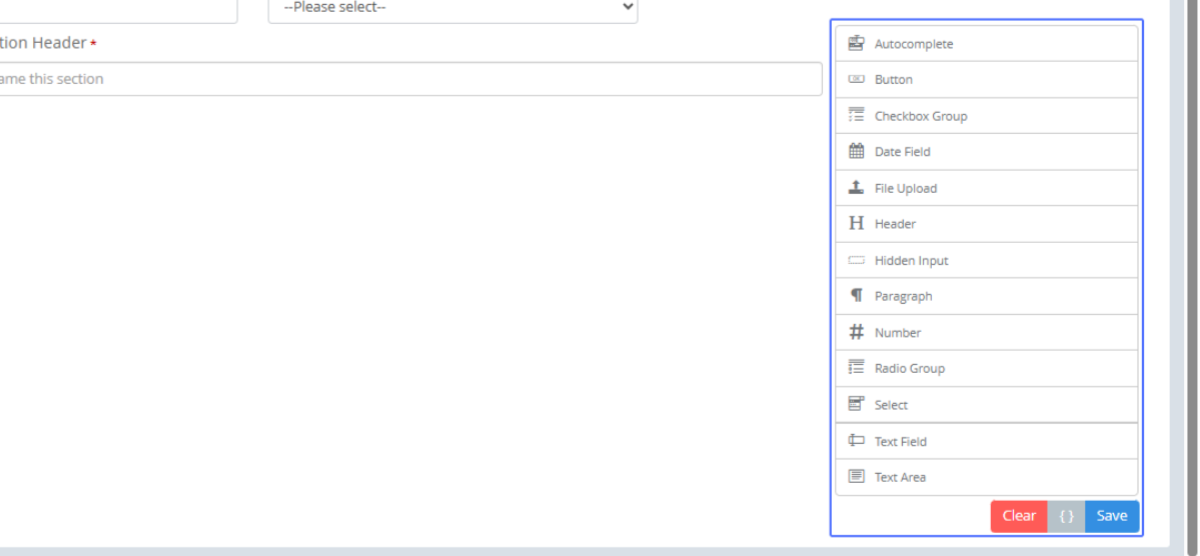
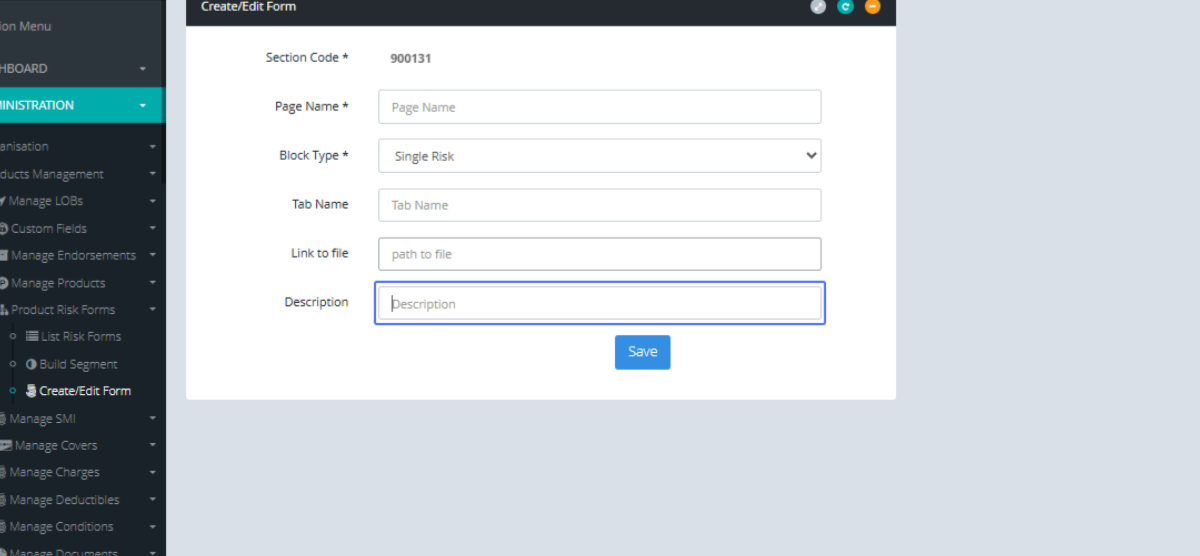
Accessing the Form Editor: Users can also create and edit forms within the application.
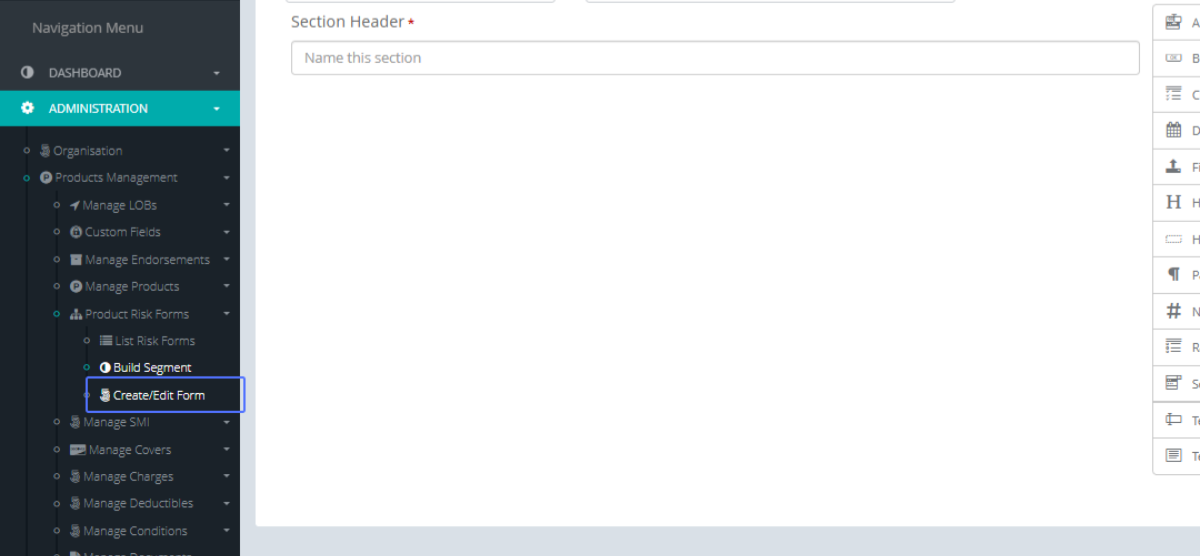
Tab Name: Create/Edit Form - GENOVA INSURANCE
Entering the Page Name: When creating a new from, the system auto-generates the Section code, Users then enter the page name in the field provided.
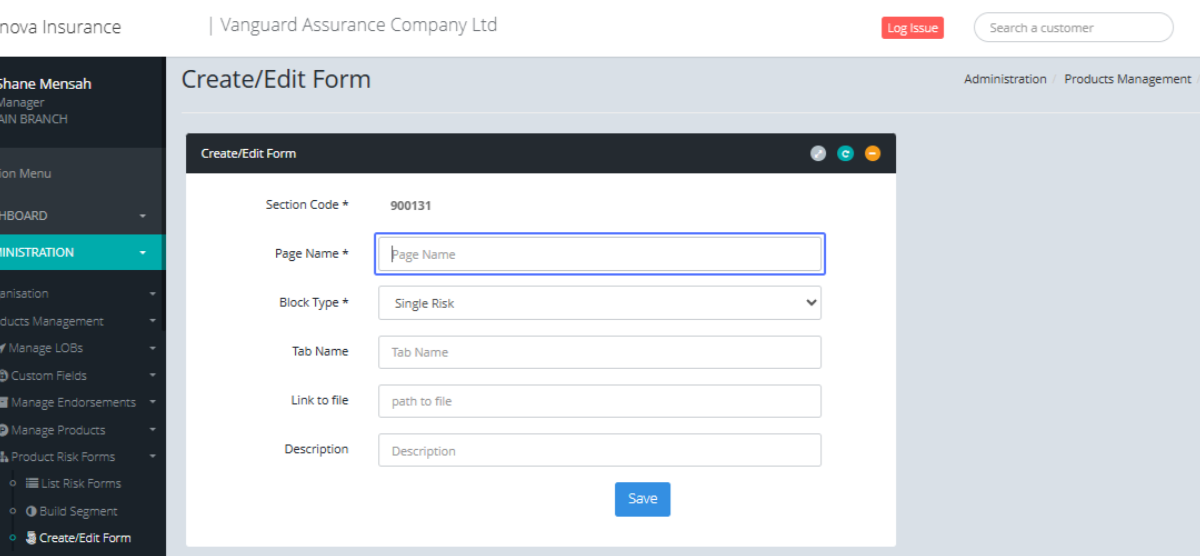
Selecting the Block Type: Users can select the Block type within the dropdown
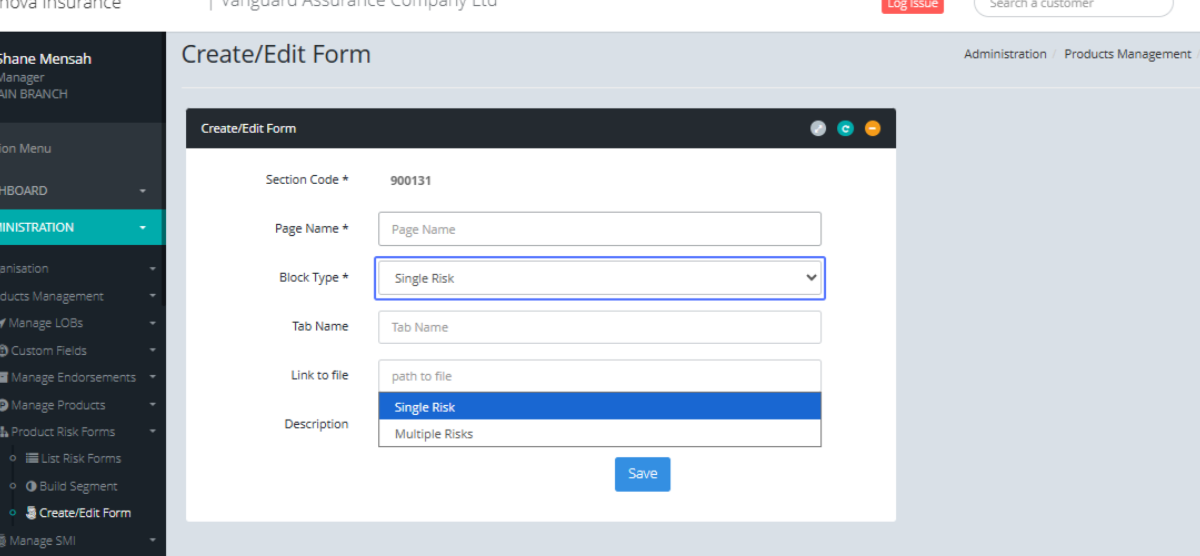
Specifying the Tab Name: Users can enter the tab name within this field

Providing the File Path: Users can provide the link to the file (Developer Use Only)
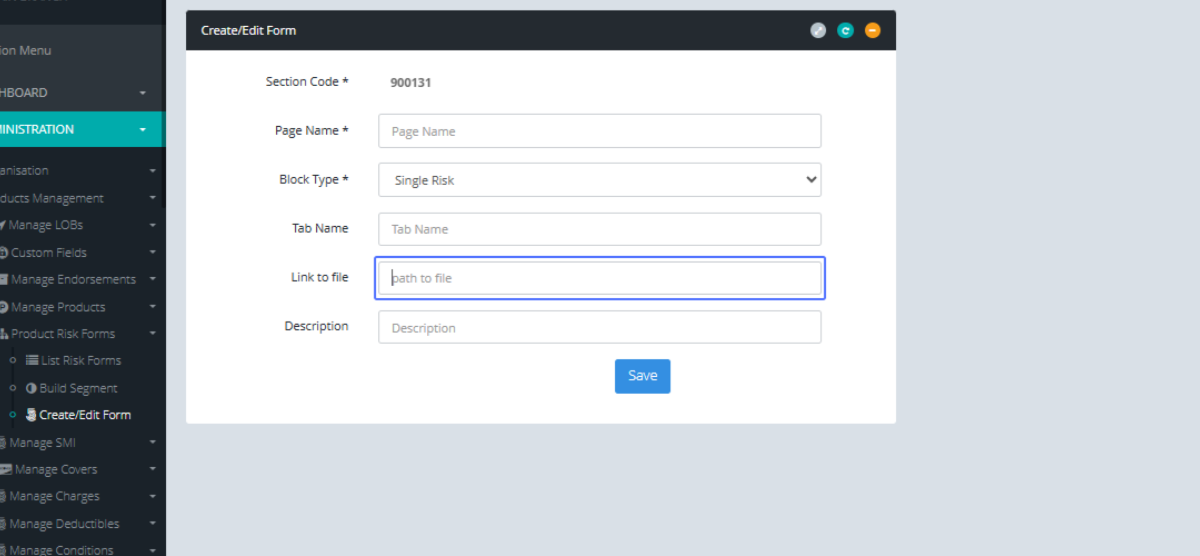
Adding a Description : Users can also add a description to the form if necessary.